
Use synthetic shoppers to run an A/B test in under an hour. Squoosh supports two experiment setup paths: Theme Tests (Shopify themes) and URL Tests (any two URLs).
Prerequisites
Link your GA4 property in Set up Squoosh, then complete Calibrate Synthetic Shoppers.
Step 1: Create and name your experiment
In the Squoosh dashboard, click Experiments, then select Create experiment. Enter a clear name (example: “New PDP layout vs current PDP”).
Step 2: Define Original and Variant
Choose one of the supported setup paths (details: Supported Tests).
Theme Tests compare two Shopify themes.
- Ensure theme experiments are enabled: Enable theme experiments
- In Original, click Select Shopify Theme and choose your live theme
- In Variant, click Select Shopify Theme and choose the modified theme you want to test
Variant tips
Make sure the variant theme is previewable and points at the same domain so shoppers can navigate consistently.
URL Tests compare two explicit URLs (landing pages, product pages, staging environments, etc.).
- In Original, click Select URL and paste the current URL (must start with
http://orhttps://) - In Variant, click Select URL and paste the variant URL you want to compare against
Keep URLs comparable
Prefer URLs on the same domain and with the same primary user goal (e.g., PDP vs PDP) to avoid noisy results.
Step 3: Run the experiment
Click Run experiment. Squoosh will start sending synthetic shoppers to each version.
- By default, traffic is split ~50% to Original and ~50% to Variant
- Shoppers follow realistic journeys that mirror your calibrated audience (when GA4 is linked + calibration is complete)
- Results begin to appear as sessions complete
Step 4: Review results
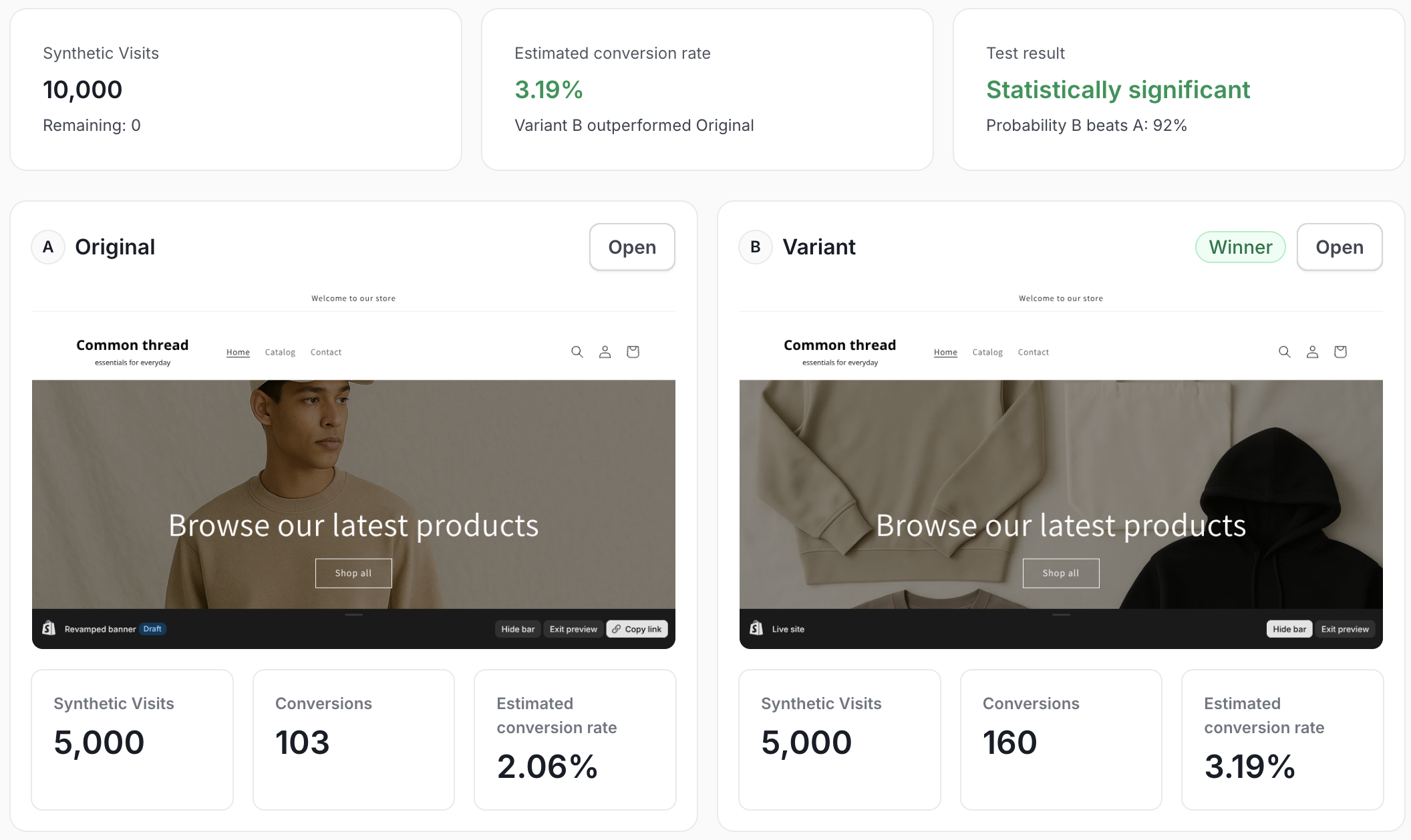
- View the winner, conversion estimates, and confidence scoring